Drum Visualizer & Contributor Guide
How to listen to Carter Beauford’s isolated studio drum stems, read the scrolling drum roll, leave timestamped fix notes as a Commenter, and edit charts once promoted to Editor.
1. Workspace Overview & Top Controls
Sign in at carterguesser.com/login using the username and password you chose when volunteering. Every main control is labeled below:
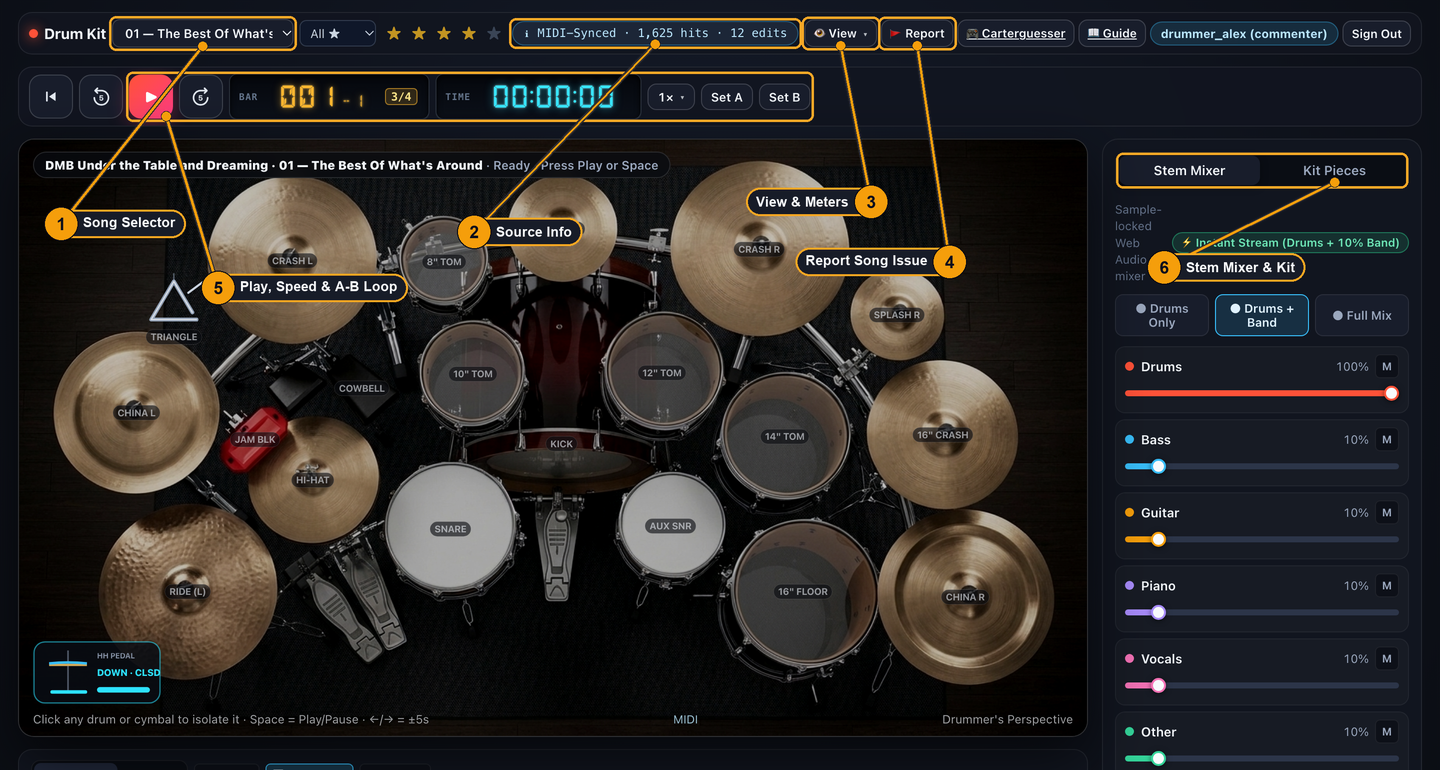
Click the screenshot to open full resolution in a new tab.
- 1Song Selector: Pick any track (plus the star rating dropdown right next to it to filter tracks by quality).
- 2Source Info: Click to see whether the chart came from MIDI, neural transcription, or edits, plus total hit counts.
- 3View & Meters: Switch kit layout (Carter vs Studio), toggle drum labels, Tab Key legend, glow mode, or 16:9 view.
- 4Report Song Issue: Flag whole-song problems (sync drift, wrong tempo, missing section, or broken audio stems).
- 5Play, Speed & A–B Loop: Play/pause, skip ±5s, pick speed (
0.5×–1.25×), or setSet A/Set Bloop points. - 6Stem Mixer & Kit: Switch presets (Drums Only, Drums + Band, Full Mix), solo/mute individual instruments, or switch to the Kit Pieces tab for per-drum hit counts.
2. Playback, Slow-Down & Mixing Tips
- Keyboard shortcuts: Space plays/pauses, ← / → jumps back/forward 5 seconds, and clicking any drum/cymbal on the overhead photo isolates that piece visually.
- Check mixes carefully: Keep Drums Only or Drums + Band (10%) active to judge ghost notes and hi-hat foot chicks clearly, or slide Bass/Guitar up to verify whether a stray low transient was a kick or bass bleed.
- Loop tricky fills: Click
Set Abefore a fill andSet Bafter it to repeat that section while checking every hit.
3. Reading the Scrolling Drum Tab
Hits scroll right-to-left across the playhead line in sync with the overhead kit:
4. Leaving Timestamped Fix Notes (Commenter Role)
Approved volunteers start as Chart Commenters. Pause on any beat that sounds off and click Mark Note to log the exact timestamp:
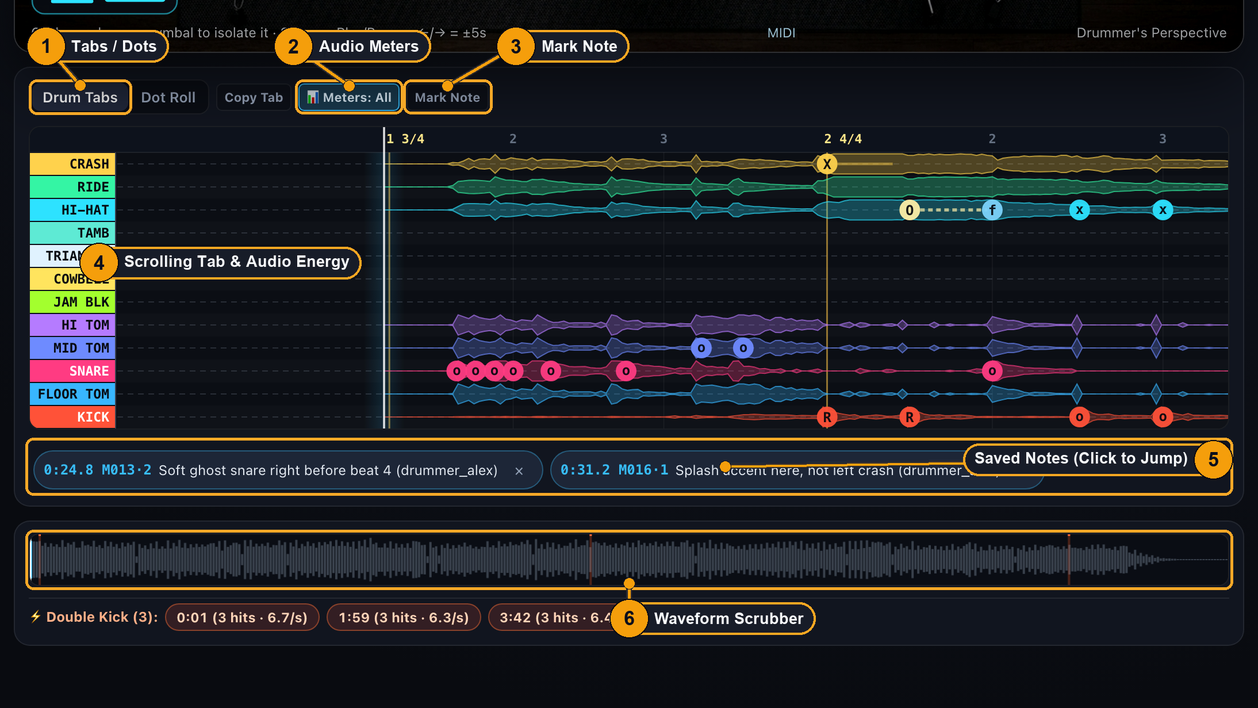
Click the screenshot to open full resolution in a new tab.
- 1Tabs / Dots: Toggle between drum-tab letters (
X,g,f,R/L) and clean dot notation. - 2Audio Meters (
📊 Meters): Cycle Off → All to overlay real Kick/Snare/Hi-Hat/Tom audio energy behind the chart so missing hits and false positives jump out. - 3Mark Note: Pause or scrub to the exact beat, click
Mark Note, and write a brief fix note (e.g. "Soft ghost snare before beat 4" or "Splash accent, not crash"). - 4Scrolling Tab & Audio Energy: Watch each symbol cross the vertical playhead line against the live frequency meter behind that lane.
- 5Saved Note Chips: Every submitted note appears as a timestamped chip below the roll. Click any chip to jump straight back to that spot (or
×to remove your note). - 6Waveform Scrubber: Click or drag anywhere along the bottom waveform (or click a red ⚡ Double Kick hotspot pill) to jump right to busy sections.
5. Editing Charts Directly (Editor Role)
Once promoted to Editor, Edit Mode unlocks above the drum roll (and defaults ON when you load a song):
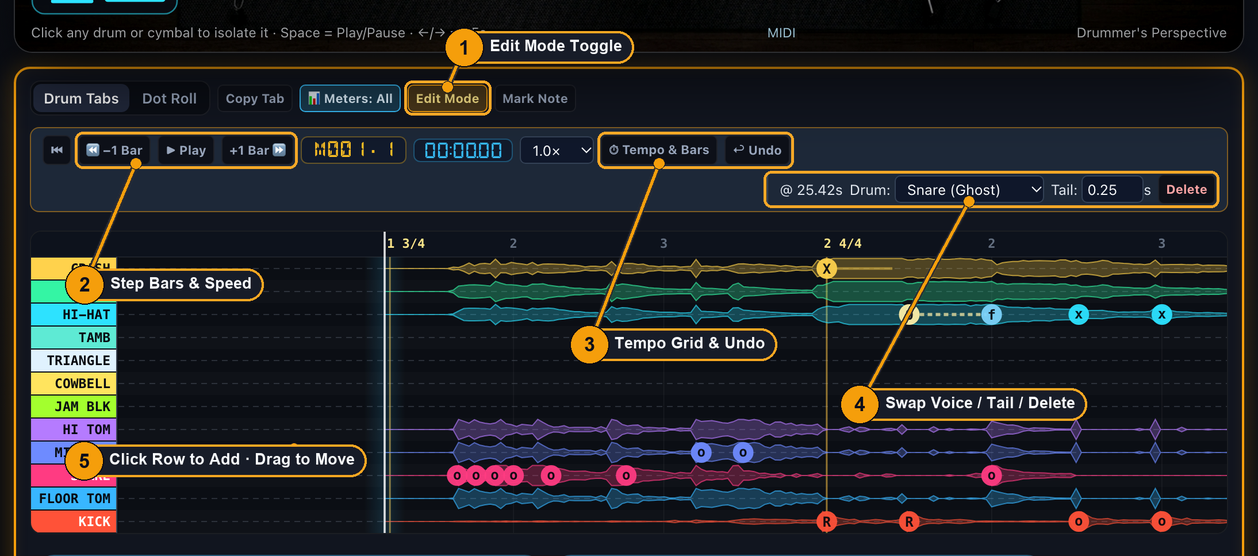
Click the screenshot to open full resolution in a new tab.
- 1Edit Mode Toggle: Turn direct chart editing On/Off above the drum roll (plus use
Propose: ★★★★★in the top bar to suggest a quality rating). - 2Step Bars & Speed: Jump measure-by-measure (
−1 Bar/+1 Bar), type a measure number intoM001 · 1, or switch edit playback speed. - 3Tempo Grid & Undo: Open
⏱ Tempo & Barsto nudge BPM, time signature, or Bar 1 anchor, or click↩ Undoto revert any mistake. - 4Swap Voice / Tail / Delete: Click any existing hit on the roll to inspect it, switch its voice (e.g. Snare (Ghost), Hi-Hat (Foot), Splash), edit sustain tail, or click
Delete. - 5Canvas Editing: Click an empty lane spot to add a hit, drag any hit left/right to tighten timing (or up/down between drums), and Shift+click (or press Delete) to remove it.